Configure Tenants
You can customize configuration for specific device types managed at the Tenants level using the following methods:
| ■ | Use the Actions & Features button to apply extensively used features on specific phone models. For example, configure Automatic DST for Teams on C470HD phones. |
| ■ | Configure individual parameters on specific phone models. For example, enable DHCP on all Teams devices. |
You can also perform global actions such as removing all existing configuration and saving configuration to an external file.
| ➢ | To set a Tenant configuration: |
| 1. | Open the Service Configuration page (Setup > Configuration > Tenant Configuration). |
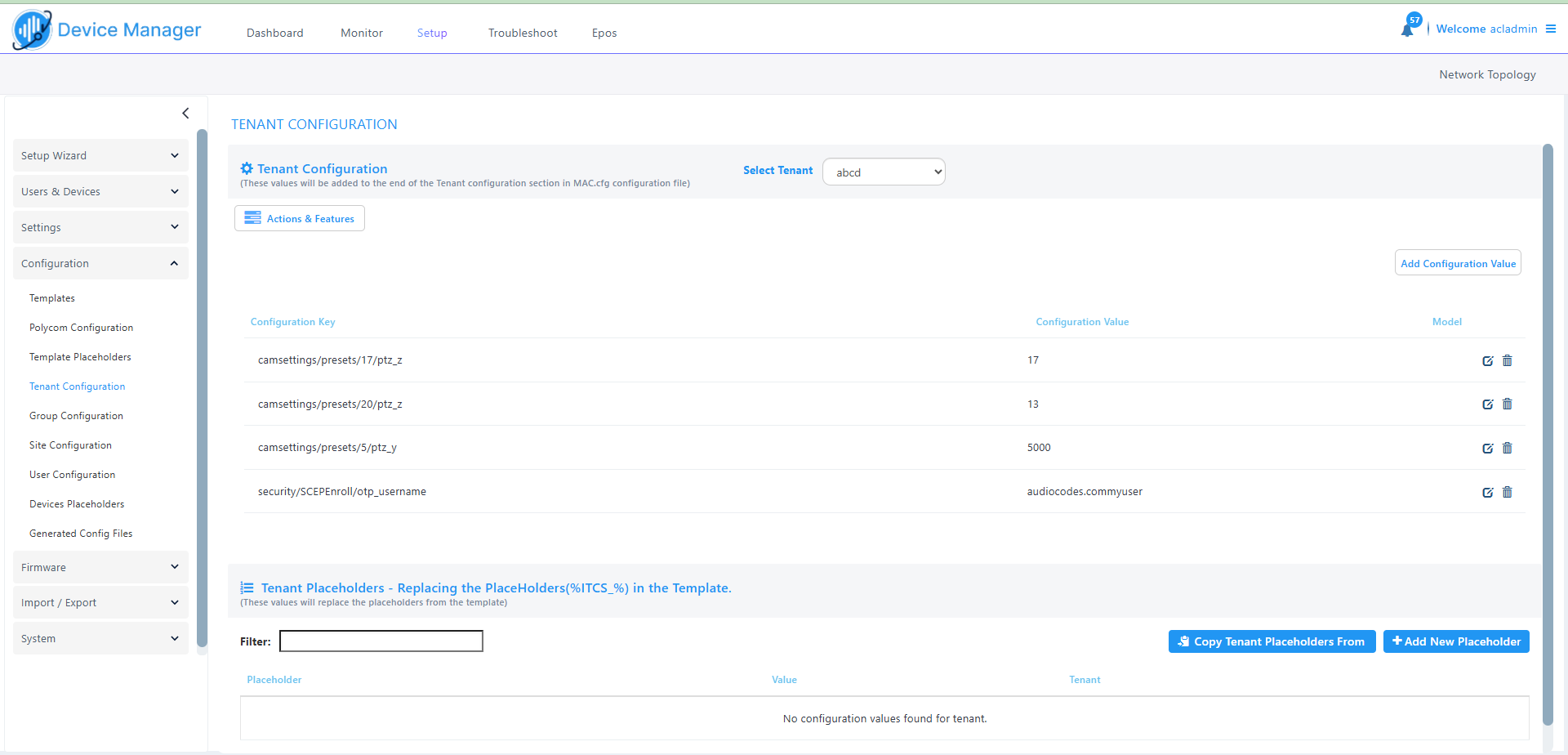
| 2. | From the Select Tenant drop down, select the tenant that you wish to configure. |
| 3. | Click Actions & Features to perform global configuration for specific phone models. |
| a. | Open the Features drop-down and then choose the relevant feature. |
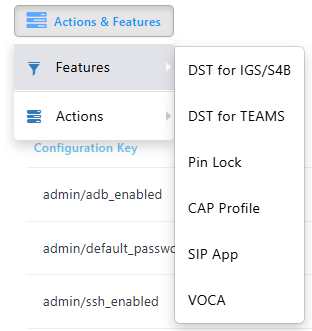
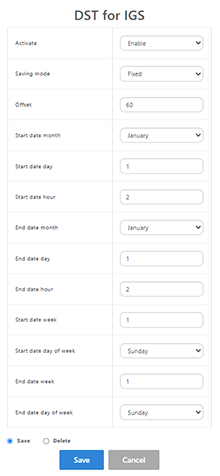
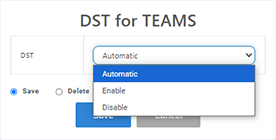
| b. | Configure according to the table below. |
|
Feature |
Description |
|---|---|
|
DST for IGS |
Configure Day Light Savings for IGS Phones.
|
|
DST for Teams |
Configure Day Light Savings for Microsoft Teams phones.
|
|
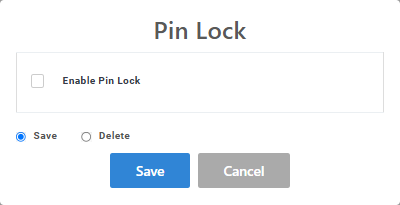
Pin Lock |
Configure Personal Identification Number (PIN) to unlock your device.
|
|
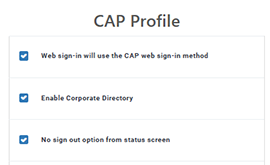
CAP Profile |
Configure the CAP (Common Area Phone) profile.
|
|
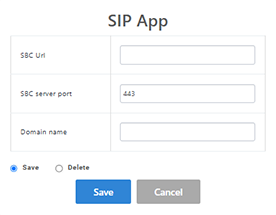
SIP App |
Configure the SIP App for Emergency Calling.
|
|
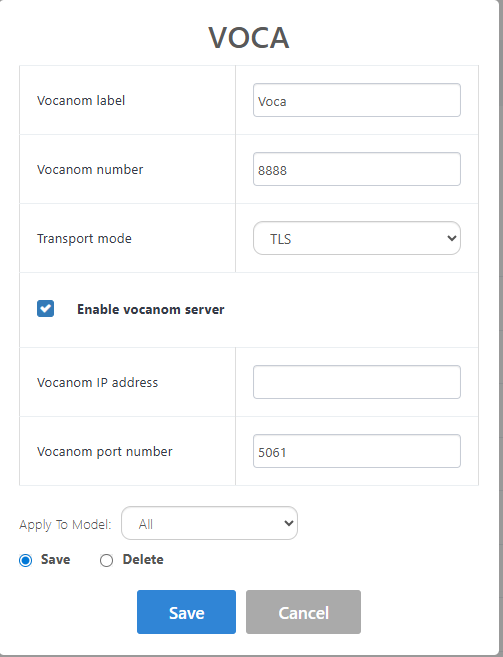
Voca |
Configure the connection to the Vocanom app.
|
| c. | Open the Actions drop-down and then choose the relevant action. |
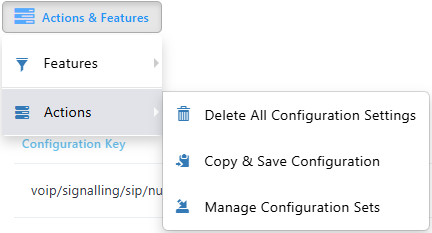
| d. | Configure according to the table below. |
|
Action |
Description |
|---|---|
|
Delete All Configuration Settings (only for System Admins) |
Delete all configuration settings of the tenant. |
|
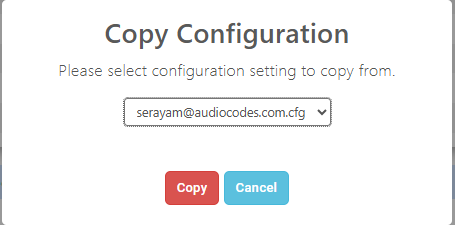
Copy & Save Configuration (only for System Admins)
|
Copy a configuration and apply it to the selected users.
|
|
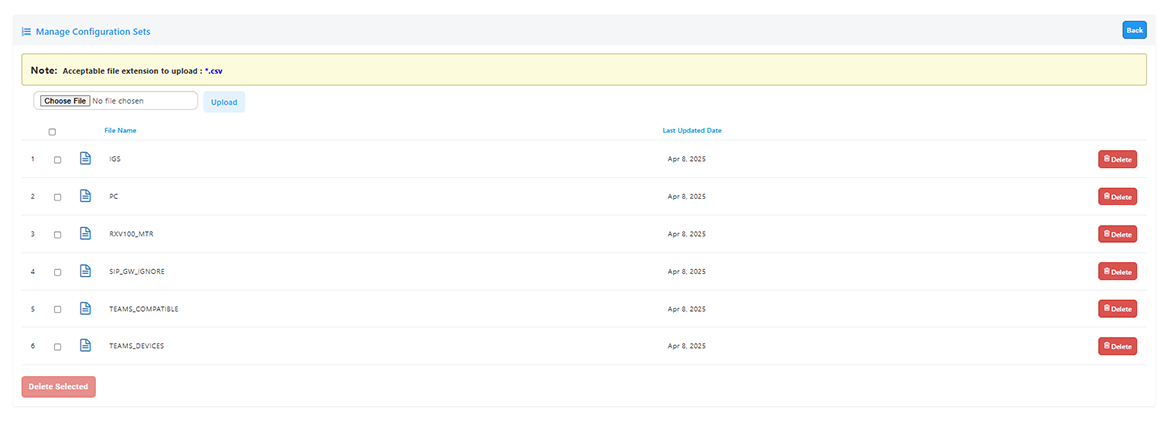
Manage Configuration Sets |
Upload Device Configuration files from an external location.
|
| 4. | To configure a specific configuration parameter, click the Add Configuration Value button. |

| 5. | Configure parameters according to the table below. |
|
Parameter |
Description |
|---|---|
|
Configuration Set |
Defines a group of parameters associated with a specific device model. From the drop-down, select the configuration set of the device to update/change at the customer management level. |
|
Configuration Key |
Enter the key for the parameter you want to change, for example, display/language. You can optionally later edit | delete your entry in the screen section below this parameter. |
|
Configuration Value |
Enter the value for the parameter you want to change, for example, en-US. |

| 6. | Click Add. The new Configuration Key is added. |
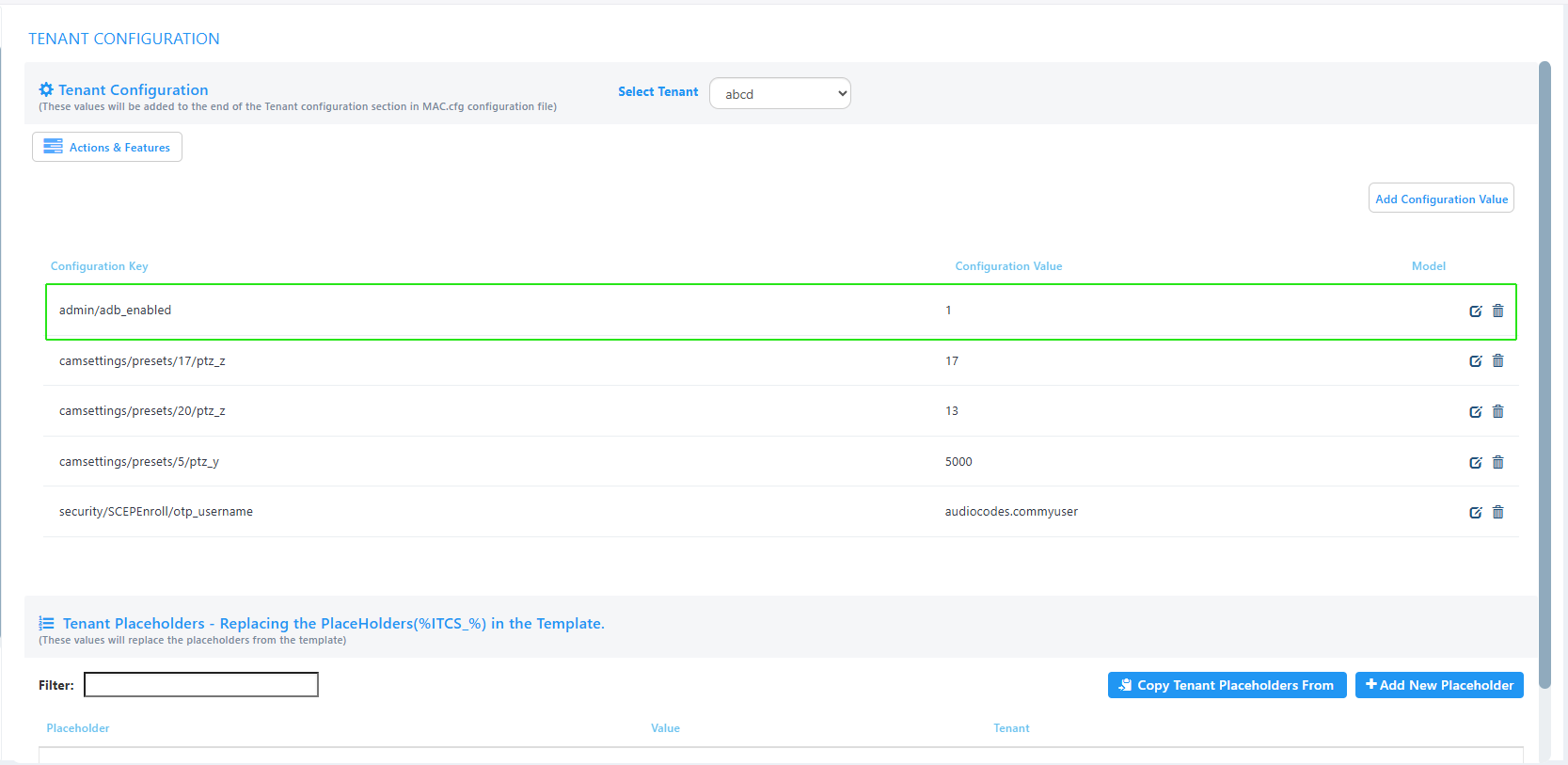
| 7. | In the ‘Tenant Placeholders’ section, in the Filter field, enter the search string to search for an entry in the list. |
| 8. | Click +Add New Placeholder. |
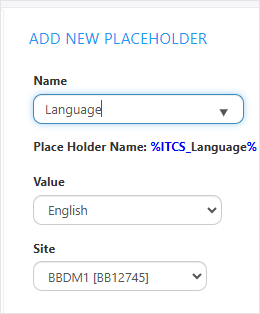
| 9. | From the 'Name' drop-down, select the name of the new placeholder. |
| 10. | In the 'Value' field, enter the value of the new placeholder. |
| 11. | From the ‘Site' dropdown, select a new site. |
| 12. | Click Save. The following confirmation message is displayed. |
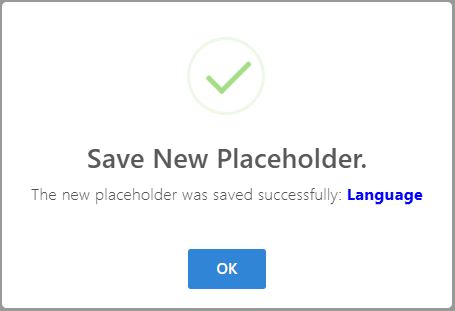
| 13. | Click OK. The new placeholder is displayed. |

| 14. | Click Edit to modify the placeholder or Delete to remove it. |
| 15. | Click Copy Service Placeholders From to copy an existing placeholder from a different profile. |
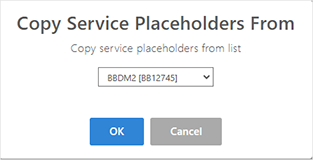
| 16. | From the drop-down, choose the profile from which you wish to copy the placeholders, and the click OK. |